
1. 背景
6 月儿子诞生, 又有折腾的接口了.
儿子睡着后会放到主卧, 老婆在客厅, 我在书房, 为了监控儿子的睡眠状态, 开始折腾家里的闲置设备.
2. 目标
- 使用小米的大方摄像头捕获儿子的实时视频, 如果儿子动了就报警;
- 使用树莓派搭建 MQ 服务器, 将大方的告警推送到手机上;
3. 整体架构

- 大方摄像头监控儿子, 如果监测到动作, 这通过自带的 MQ client 发送动作告警;
- 树莓派监听特定 topic, 如果符合预设值则通过 bark 发送动作告警;
- 妈妈收到 bark 消息, 前去查看儿子是否需要宝宝;
完美的闭环
4. 实施步骤
4.1 大方摄像头刷固件
小米的大方摄像头官方固件不支持自定义 MQ, 感谢大佬开源了第三方固件, 感谢开源.
大方色摄像头第三方固件 支持大方摄像头, 小方摄像头等多款摄像头, 提供了 RTSP, MQ, Telegram 等集成服务. 有了 RTSP 服务后, 可以接入 HomeKit 和 Home Assistant.
刷固件的教程官方写的非常详细, 这里提醒一点:
10.你应该看到蓝色 LED 闪耀 5 秒钟(不闪烁)并开始移动(DaFang / Wyzecam Pan)。如果没有,出了点问题。您应该尝试使用另一张 microSD 卡,然后查看页面底部的社区提示。从第 1 步开始。
固件刷完重启后, 不一定能看到蓝灯, 这时可以不管官方的第 10 步, 直接按照后续步骤操作即可, 如果还是不行, 看看自己的官方固件版本是否太低, 最好更新官方固件后再刷.
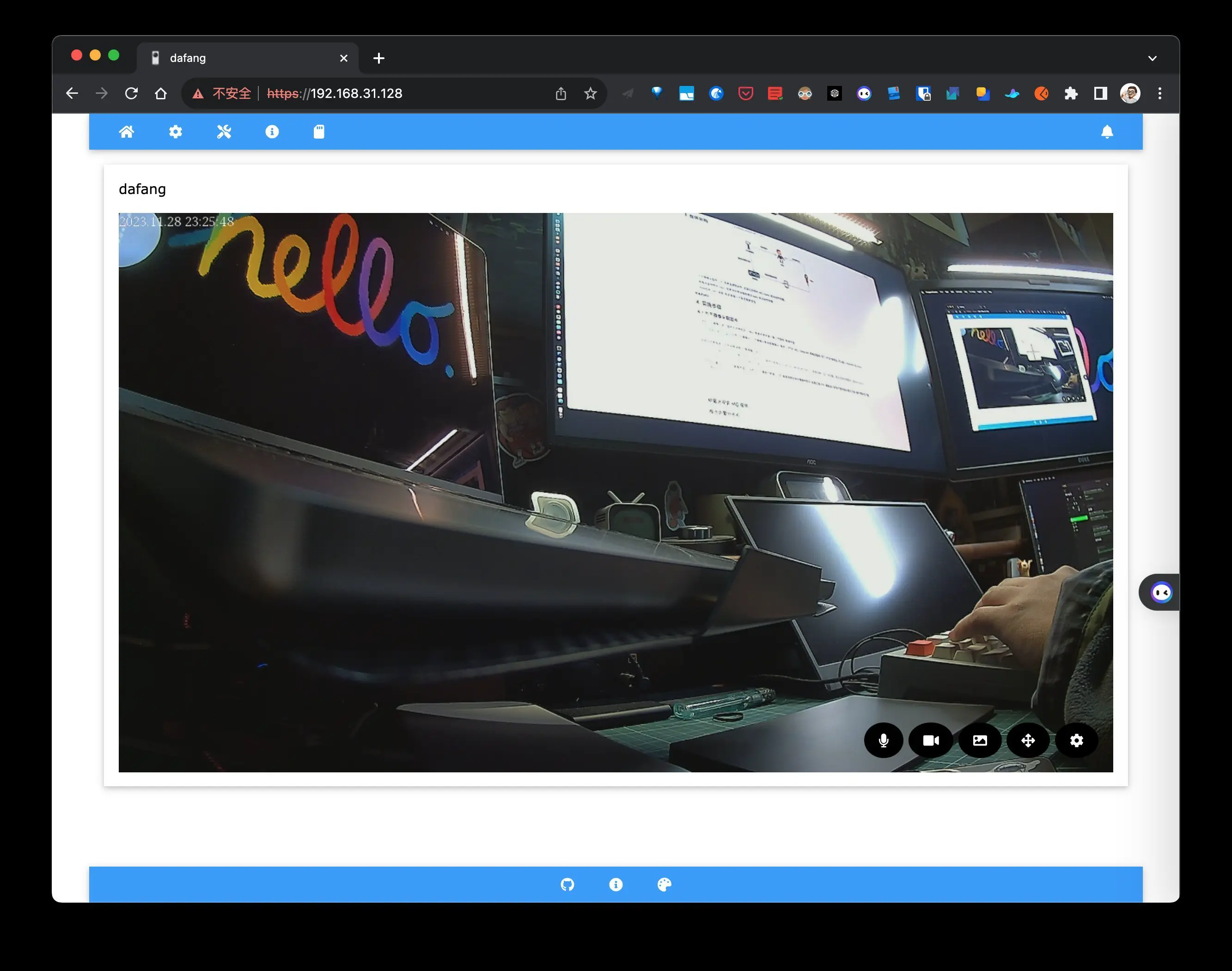
固件刷新成功后, 使用 https://ip 登录 WEB 管理端, IP 可以通过路由器获取:
4.2 设置 MQ Client
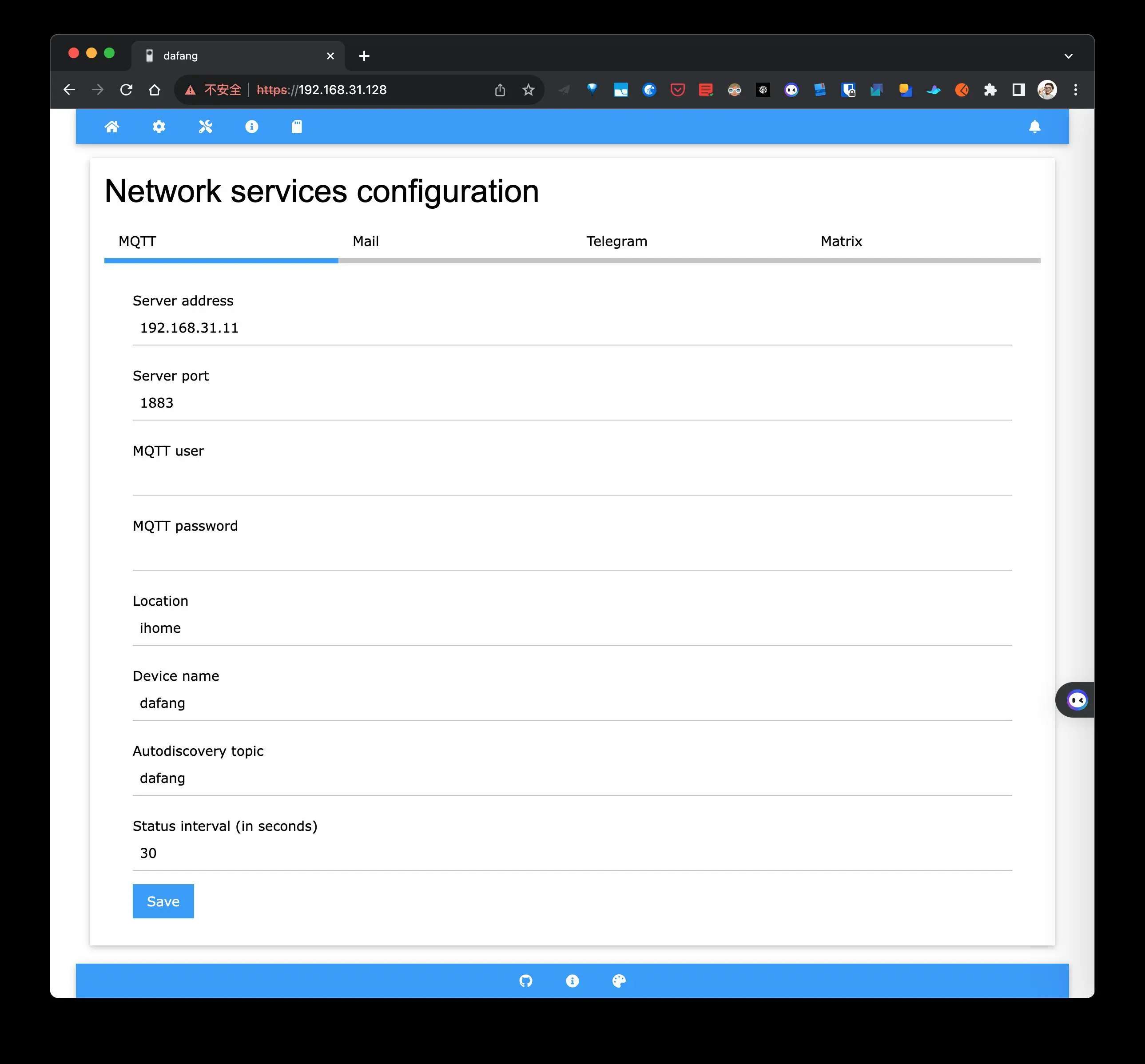
我的 MQ Server 将会安装到 192.168.31.11 这台服务器上(树莓派), 端口为默认的 1883, 局域网就不进行鉴权了.
大方摄像头上的 MQ 配置文件路径为: /system/sdcard/config/mqtt.conf
export LD_LIBRARY_PATH='/thirdlib:/system/lib:/system/sdcard/lib'

# Options for mosquitto_sub & mosquitto_pub
USER=
PASS=
HOST=192.168.31.11
PORT=1883

# Define a location
LOCATION="ihome"

# Define device name
DEVICE_NAME="dafang"

# Define the base topic used by the camera
# send a message to myhome/dafang/set with the payload help for help.
# Results will be placed in myhome/dafang/${command} or topic/dafang/error - so please subscribe topic/dafang/# for testing purposes
# 从这里我们可以知道最终的 topic 是 ihome/dafang
TOPIC="$LOCATION/$DEVICE_NAME"

# Define an autodiscovery prefix, if autodiscovery is desired:
# AUTODISCOVERY_PREFIX="homeassistant"

# Define additional options for Mosquitto here.
# For example --cafile /system/sdcard/config/DST_Root_CA_X3.pem --tls-version tlsv1
# or use a special id to connect to brokers like azure
MOSQUITTOOPTS=""

# Add options for mosquitto_pub like -r for retaining messages
MOSQUITTOPUBOPTS=""

# Send a mqtt statusupdate every n seconds
STATUSINTERVAL=30

# Define whether you would like to have light level exposed (by hardware sensor og virtual calcuations).
# If the device doesn't come with a hardware sensor, your only option is to use 'virtual'.
#
#  Options:
#	hw = Use 'hw' if the device has build in hardware light sensor. For more details, see . See issue eg. #1120 for more details...
#	virtual = Use 'virtual' calculations, based on the lightlevel on the image, also known as ISP exposure (from /proc/jz/isp/isp_info)
#	false = Use 'false' (default) to DISABLE the topic (It will not publishing details about light level)
LIGHT_SENSOR="false"
AUTODISCOVERY_PREFIX="dafang"
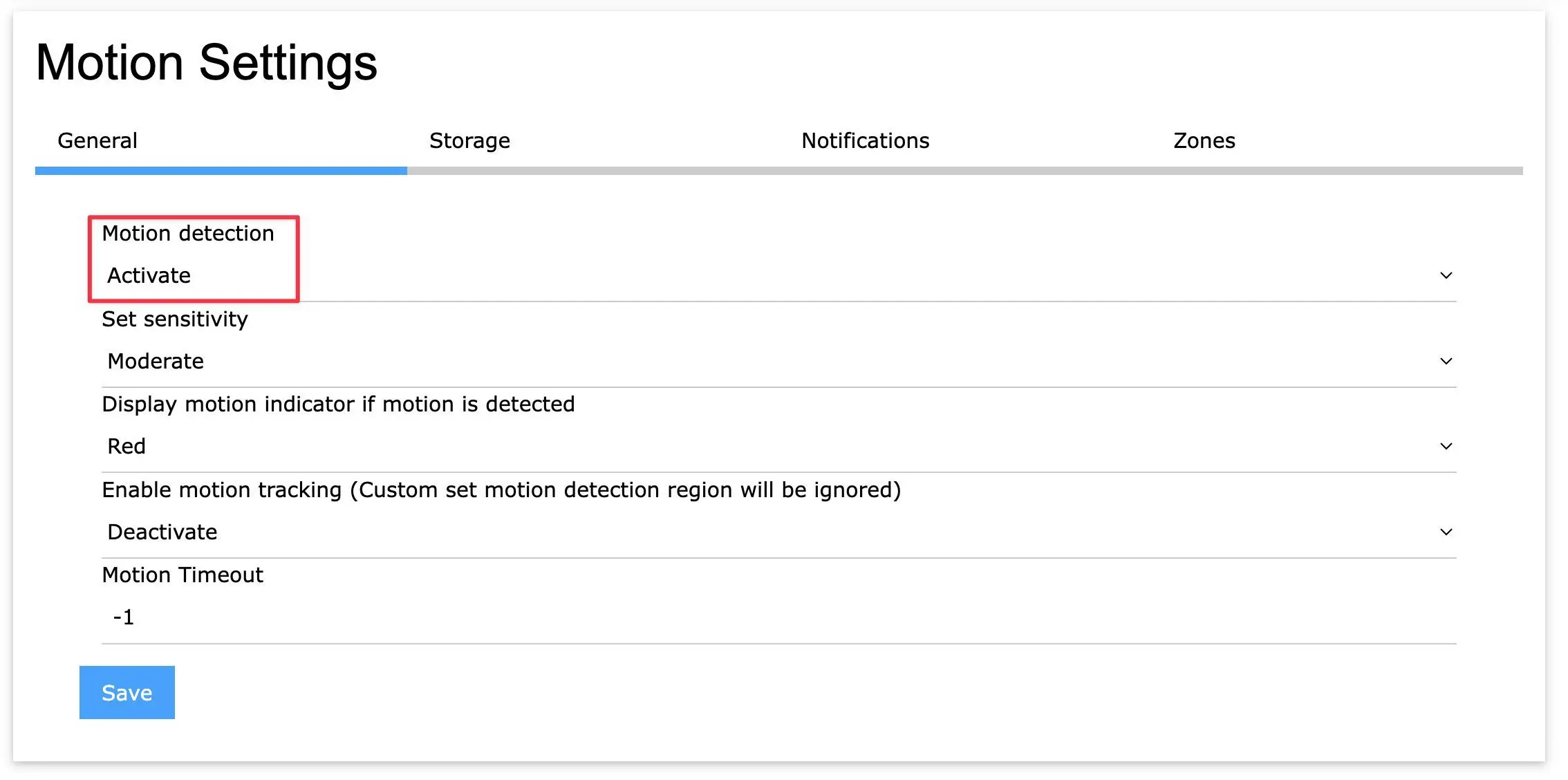
4.2.1 设置动作检测
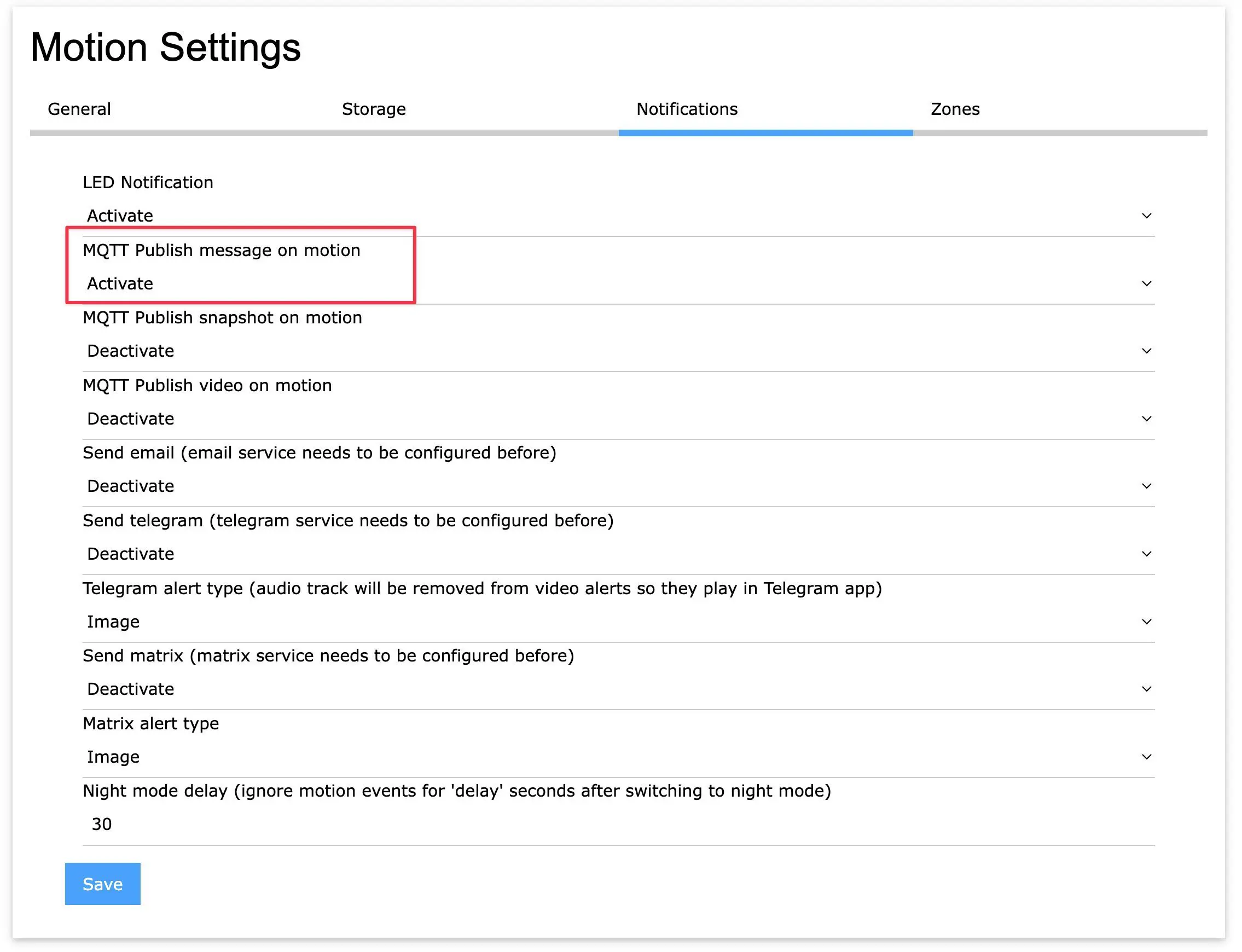
4.2.2 设置动作推送
4.2.3 测试
这里使用 MQTTX 进行测试:
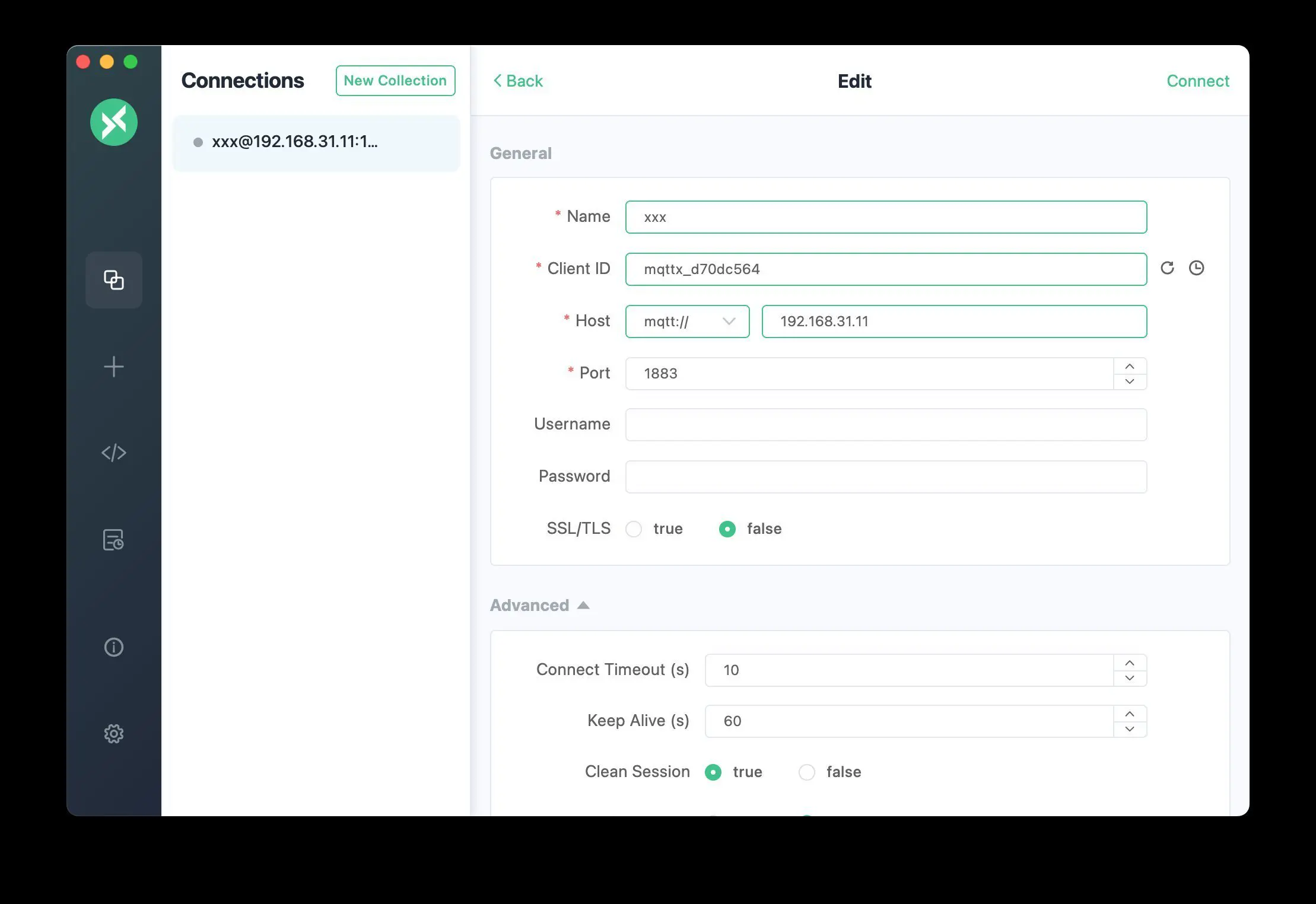
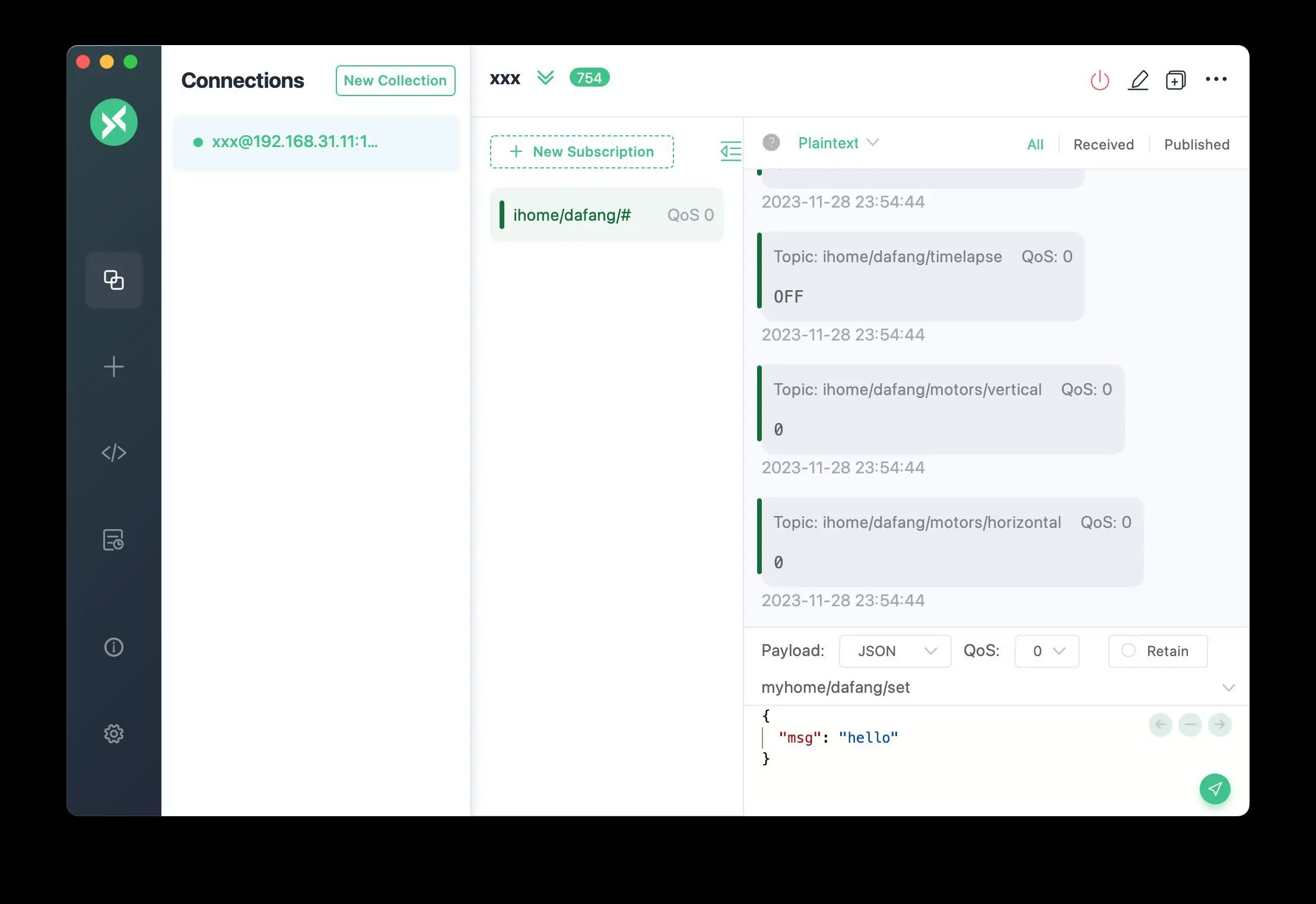
订阅的 topic: ihome/dafang/#
可以看到有多个 topic 可使用:
ihome/dafang
ihome/dafang/leds/blue
ihome/dafang/leds/yellow
ihome/dafang/leds/ir
ihome/dafang/ir_cut
ihome/dafang/rtsp_server
ihome/dafang/night_mode
ihome/dafang/night_mode/auto
ihome/dafang/recording
ihome/dafang/timelapse
ihome/dafang/motion
ihome/dafang/motion/detection
ihome/dafang/motion/led
ihome/dafang/motion/snapshot
ihome/dafang/motion/video
ihome/dafang/motion/mqtt_publish
ihome/dafang/motion/mqtt_snapshot
ihome/dafang/motion/send_mail
ihome/dafang/motion/send_telegram
ihome/dafang/motion/tracking
ihome/dafang/motion
我们只需要 ihome/dafang/motion 这个 topic, 当监测到动作时, 大方摄像头将向 ihome/dafang/motion 发送 ON, 动作结束后发送 OFF.
大方摄像头的监测配置同样可以使用配置文件配置, 路径为 /system/sdcard/config/motion.conf, 修改完成后使用 WEB 管理端重启 MQTT 服务即可.
4.3 树莓派安装 MQ 服务
MQTT 服务端选择使用轻量级的 mosquitto, 安装命令:
sudo apt update
sudo apt upgrade
sudo apt install mosquitto mosquitto-clients
安装完成后验证是否成功
sudo systemctl status mosquitto此命令将返回 mosquitto 服务的状态。
如果服务已正常启动,应该会看到文本 active (running).
4.3.1 测试
mosquitto 自带了 mosquitto_pub 和 mosquitto_sub 命令, 因此我们使用这两个命令进行简单的测试:
在一个终端执行:
mosquitto_sub -h localhost -t "mqtt/test"新开一个终端向 mqtt/test 发送消息:
mosquitto_pub -h localhost -t "mqtt/test" -m "hello baby"
4. 安装 bark 服务
4.1 服务端
在 192.168.31.33服务器上 使用 docker 安装 bark:
version: '3.8'
services:
  bark-server:
  	# 这个镜像比官方的功能多一些, 比如支持 markdown
    image: adams549659584/bark-server
    container_name: barkd-server
    restart: unless-stopped
    volumes:
      - ./data:/data
      - ./web:/web
    ports:
      - "8082:8080"
4.2 客户端
- iOS
- Android
- Chrome 插件
- 在线定时发送
- Windows 推送客户端
- 跨平台的命令行应用
- GitHub Actions
- Quicker 动作
- Bark for Wox
- bark-jssdk
- java-bark-server
- Python for Bark
5.4 推送告警到手机
来到最后一步了, 这里讲使用 python 来写一个 mosquitto client 并监听 ihome/dafang/motion, 如果值为 ON 则使用 bark 发送消息.
5.4.1 安装依赖
pip install paho-mqtt5.4.2 编写脚本 (sub.py)
#!/usr/bin/env python
# -*- coding: utf-8 -*-
"""
A small example subscriber
"""
import paho.mqtt.client as paho
import requests

# 定义连接成功后的回调函数
def on_connect(client, userdata, flags, rc):
    print("Connected with result code "+str(rc))

def on_message(mosq, obj, msg):
    print("%-20s %d %s" % (msg.topic, msg.qos, msg.payload.decode()))
    mosq.publish('pong', 'ack', 0)
    if msg.payload.decode() == 'ON':
      	# 向 bark 发送消息
        requests.get('http://192.168.31.33:8082/nmfxNpbf37LZC654nA2HVF/娃儿动了/快去看一下?icon=https://s2.loli.net/2023/10/28/Xoft5KR2xZm3aCd.jpg')

if __name__ == '__main__':
    client = paho.Client()
    client.on_connect = on_connect
    client.on_message = on_message

    #client.tls_set('root.ca', certfile='c1.crt', keyfile='c1.key')
    client.connect("192.168.31.11", 1883, 60)

    client.subscribe("ihome/dafang/motion", 0)

    while client.loop() == 0:
        pass%
5.4.3 执行脚本
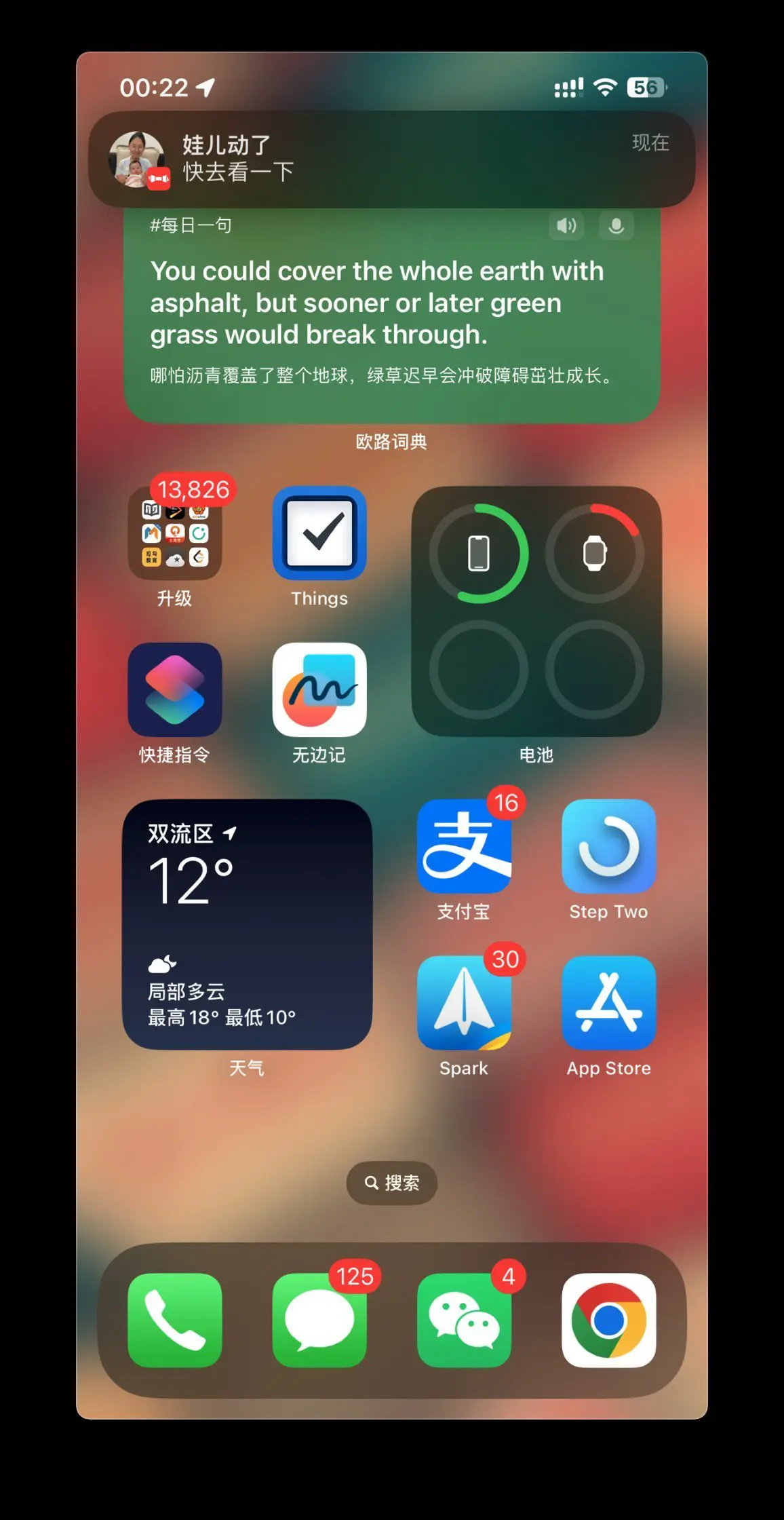
python sub.py在大方摄像头前面动一下应该就可以收到消息了:
5.4.4 设置自动启动
为 sub.py 设置可执行权限:
chmod +x sub.py创建 Systemd 服务配置
建立一个新的 Systemd 服务单元配置文件,储存于/etc/systemd/system/motion.service:
[Unit]
Description=dafang MQTT Motion

[Service]
Type=simple
ExecStart=/home/dong4j/sub.py
Restart=always
[Install]
WantedBy=multi-user.target
相关命令
# 开机启动
systemctl enable motion
# 关闭开机启动
systemctl disable motion
# 启动服务
systemctl start motion
# 停止服务
systemctl stop motion
# 重启服务
systemctl restart motion
# 查看服务状态
systemctl status motion
systemctl is-active motion.service
# 结束服务进程(服务无法停止时)
systemctl kill motion